 Anti Tear
Everything Anti Tear does
Tear-free projecting, the capture card’s fastest mode, a tear test that proves it, and an app that stays out of your game’s way.
Tear-free on the capture card
Anti Tear shows your game fullscreen on the capture card and changes frames only in the short gap between two of its refreshes.
Can’t tear
A frame that isn’t ready in time repeats the one before instead of tearing, whatever your game’s vsync or G-SYNC settings.
Two ways to deliver frames
Lowest latency, the default, shows the newest frame at every refresh. Smooth keeps one in reserve: one refresh more latency, and the occasional clock-drift hitch evens out.
Hands off your game
No injection and no hooks: Anti Tear reads the screen the way OBS’s display capture does. Its window never takes focus, so your game keeps the keyboard and mouse.
Its cost, measured
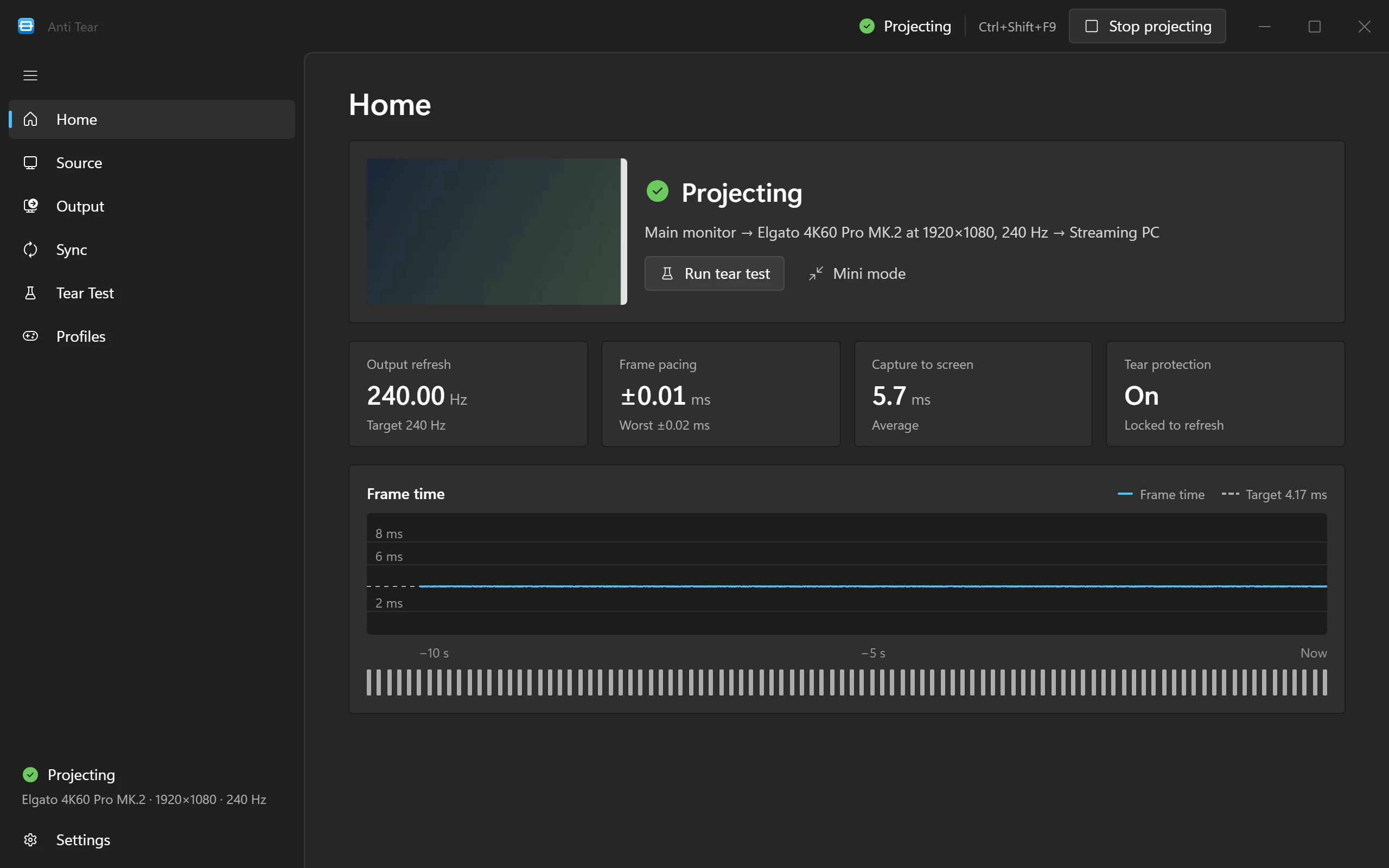
While projecting, the Sync page shows your game’s frame rate, Anti Tear’s GPU time per frame and the capture-to-screen delay. It runs at high GPU priority, never realtime.
Choose what goes to the card
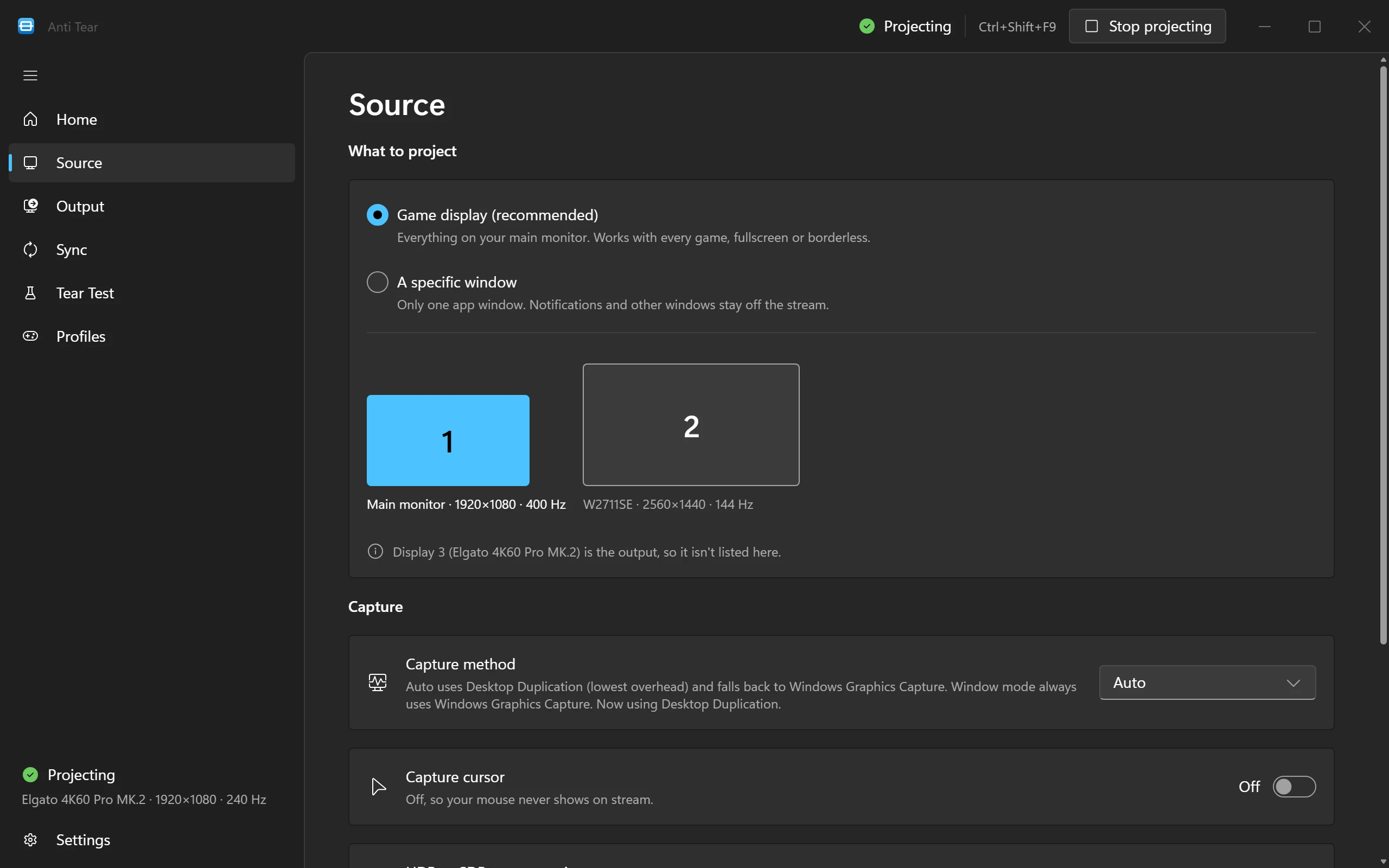
Your whole game display or one window, captured the lightest way your setup allows.
Game display or one window
The game display works with every game, fullscreen or borderless. A specific window keeps notifications and everything else off the stream.
Capture method: Auto
Desktop Duplication, the lowest overhead, with Windows Graphics Capture as the fallback. Or pick either yourself. Window capture always uses Windows Graphics Capture.
Cursor on or off
Off by default, so your mouse never shows on stream. Turn it on when viewers should see it.
HDR to SDR tone mapping
Capture cards record SDR. When your game display runs HDR, bright highlights roll off instead of clipping to flat white.
Scaling
Fit, fill or stretch the picture to the card’s resolution, with Bilinear, Bicubic, Lanczos or Area filtering. Auto copies the picture as it is when the sizes match.
Your capture card at its best
Anti Tear knows what your card can capture, runs it at the best mode for your stream and fixes the display settings that would spoil it.
Knows your card
Detected from what the card reports, or picked by hand. Anti Tear knows the capture limits of 24 models and assumes 60 Hz for any other.
The best mode for your stream
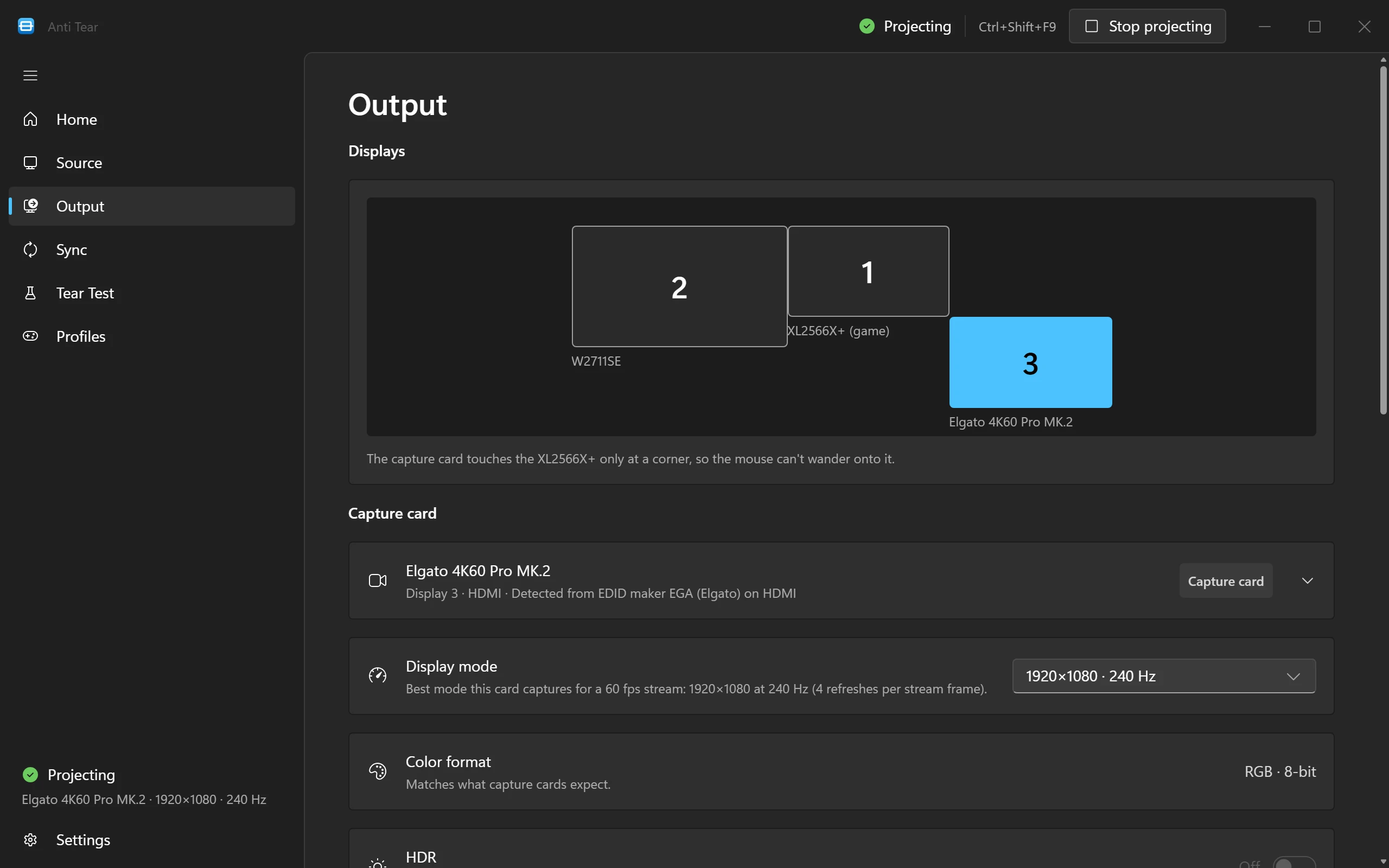
The fastest refresh the card captures that divides evenly into your stream, like 1920×1080 at 240 Hz for 60 fps. Every mode the card accepts is marked recommended, uneven, passthrough only or needs HDMI 2.1.
A map of your displays
Shows how your displays are arranged and whether the card touches the game display only at a corner, where the mouse can’t wander onto it.
One-click fixes
Duplicate mode to Extend, the card to its best mode, HDR off on the card. It checks the colour format too: capture cards expect RGB.
Safe display changes
Every mode change is a 15-second trial: keep it, or it goes back on its own, even after a crash. Restore puts back what you had before Anti Tear changed anything.
Streaming PC checklist
The OBS settings that match the card’s mode: frame rate, buffering, canvas, video format, colour range and audio.
On the wrong graphics card
If the capture card is on a different graphics card from your game display, Anti Tear says so and where to move the cable.
Proof, not promises
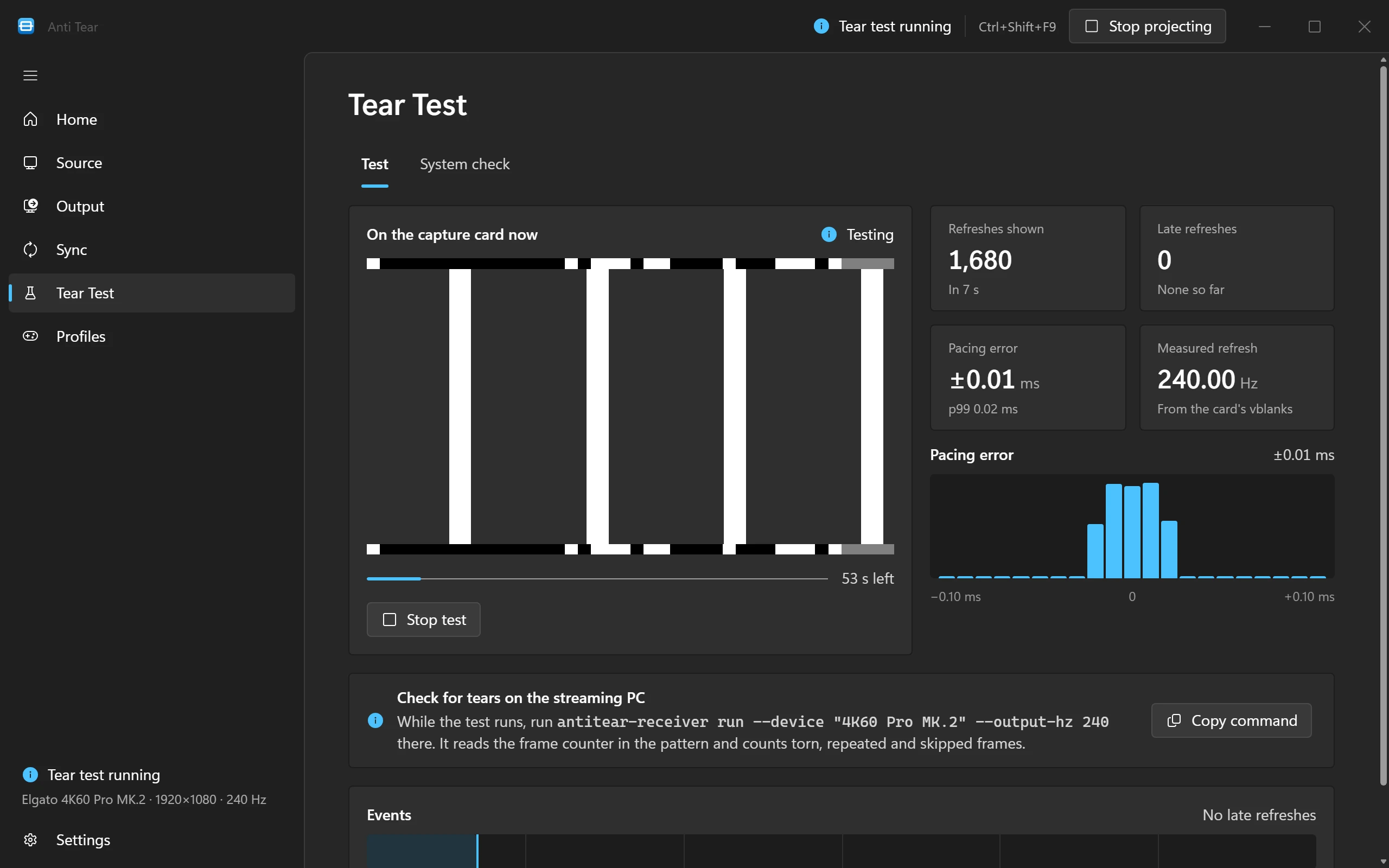
The tear test puts a pattern on the capture card for 60 seconds and measures every refresh. Your game keeps running.
Three test patterns
Moving bars, where a tear shows as a break in a bar. A checkerboard that inverts every refresh, so a repeated or skipped frame flickers. And a frame counter, the calmest to watch.
Every refresh measured
Refreshes shown, late refreshes, pacing error and the refresh rate measured from the card’s vblanks, with a timeline of events and a report to copy.
Counted on the streaming PC
Anti Tear’s receiver reads every frame the card captures, decodes the frame counter in the pattern and counts torn, repeated and skipped frames. The Tear Test page shows the command to run there.
A system check with fixes
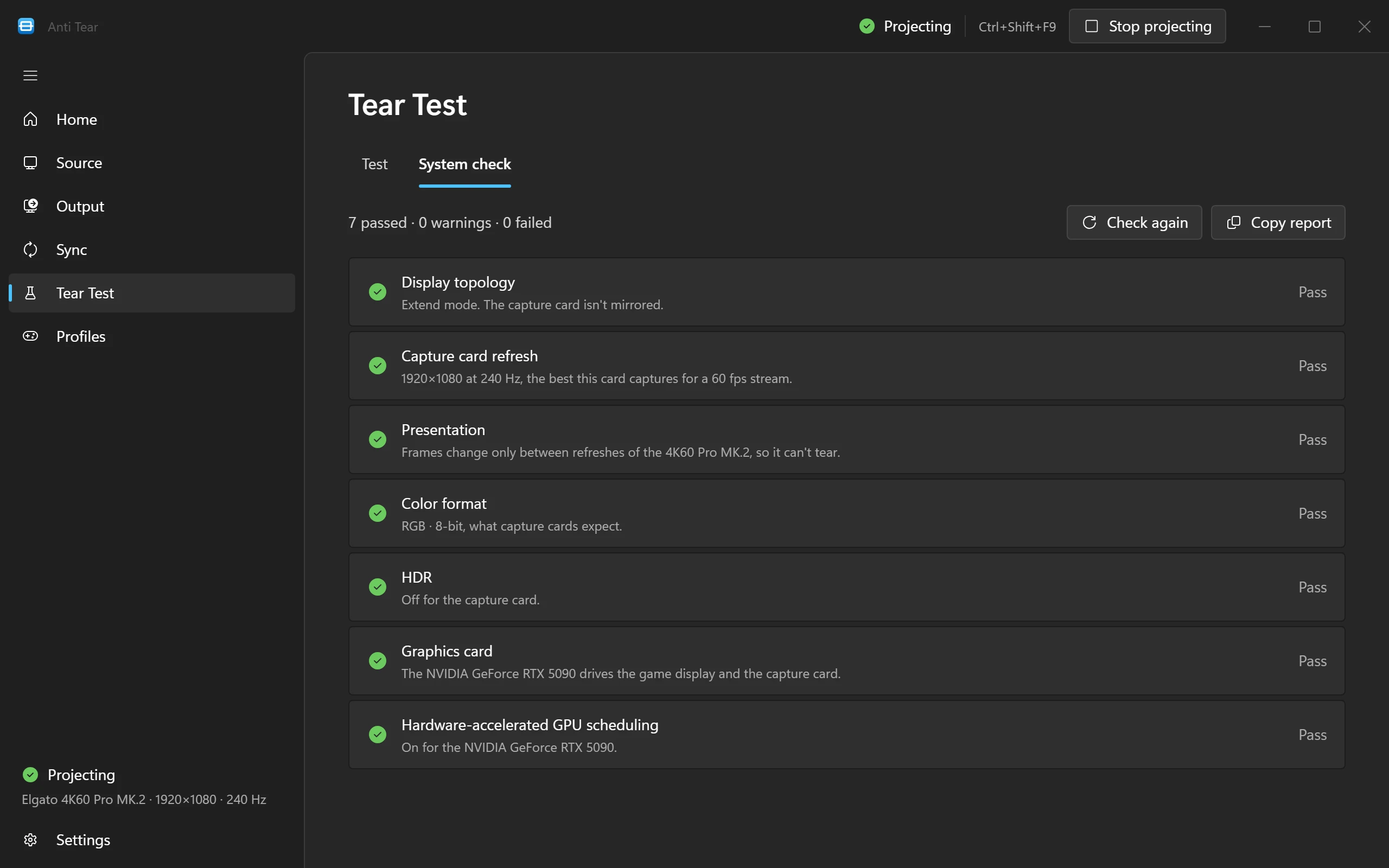
Seven checks of what decides how your stream looks: display topology, capture card refresh, presentation, colour format, HDR, graphics card and hardware-accelerated GPU scheduling.
Fixes where it can
A check that doesn’t pass says what it found and how to fix it, with a button where Anti Tear can do it for you: switch to Extend, use the best refresh, turn off HDR.
A report for support
Copy report puts every result on your clipboard with the app version, ready to paste into a support message.
Out of your way
Set it up once. After that, Anti Tear sits in the tray and switches to the right settings on its own.
A profile per game
Each profile names its game’s program, the source and the frame delivery, and switches on its own when that game starts. Every other game uses the defaults.
One hotkey
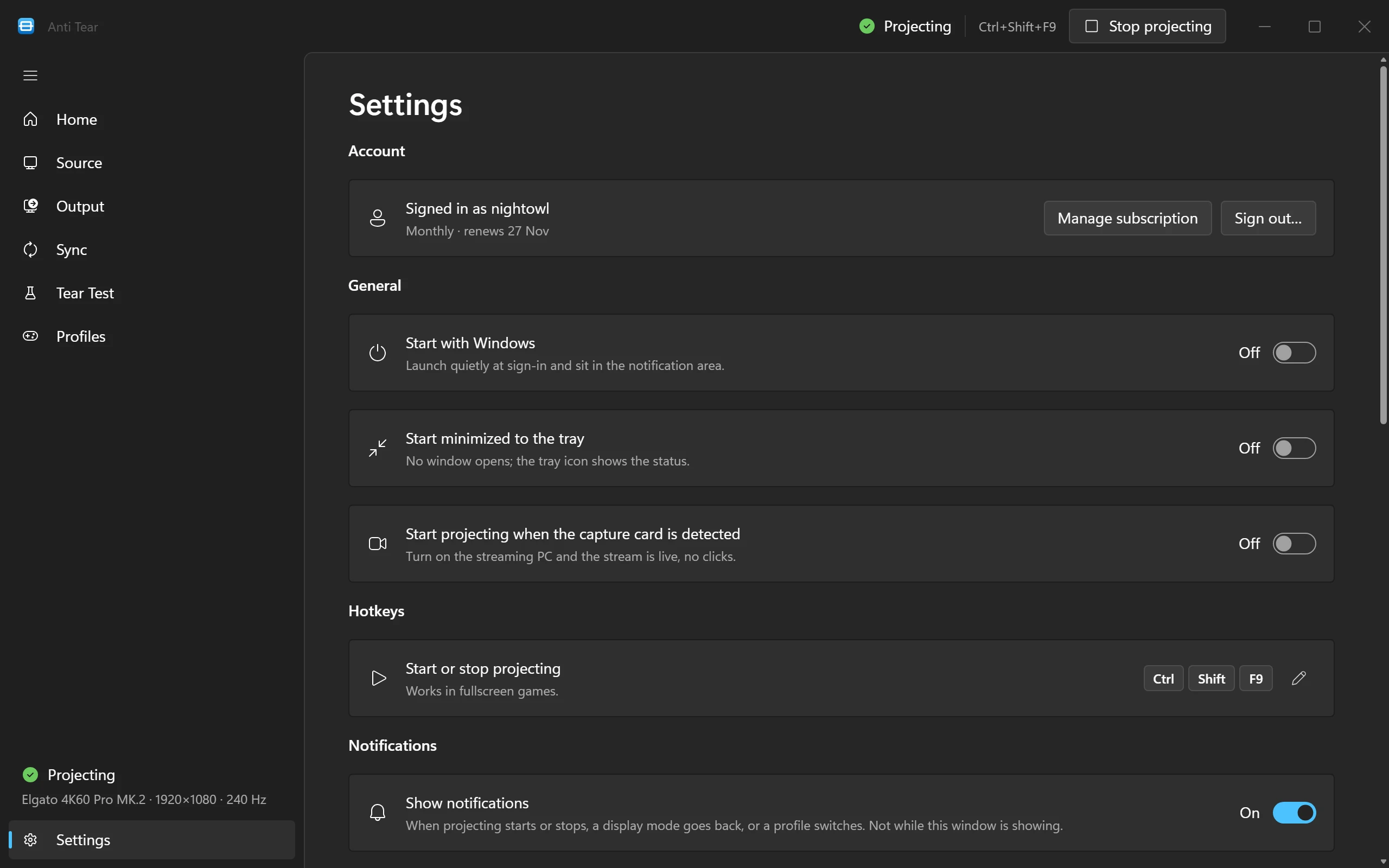
Ctrl + Shift + F9 starts and stops projecting, even from a fullscreen game. Set your own if you prefer.
Tray and mini window
Anti Tear lives in the notification area. The mini window is a small always-on-top panel with the status, the refresh rate and a strip of the latest refreshes.
Ready when you are
Start with Windows, start minimized to the tray, and start projecting as soon as the capture card is detected: turn on the streaming PC and the stream is live.
Built to stay up
Anti Tear keeps the stream going when its window closes, the card drops out or the driver resets, and leaves updates and reports in your hands.
The stream outlives the window
Projecting runs in its own process. Closing Anti Tear’s window, or a crash in it, doesn’t black out the stream; only Quit stops it.
Back on its own
If the capture card drops out, unplugged or with the streaming PC asleep, projecting resumes when it’s back. After a graphics driver reset, Anti Tear rebuilds the output.
Updates when you say
Anti Tear checks for updates and installs one when you click Install, never while you’re projecting.
Quiet notifications
When projecting starts or stops, a display mode goes back, or a profile switches. None while Anti Tear’s window is showing.
Error reports, your call
A report carries the error, the PC’s name and the app and Windows versions, never screenshots or video. Turn reports off in Settings.
Logs for support
Send logs to support uploads them and gives you a reference to quote when you ask for help.
See it on your own stream
Free for 3 days, no card needed. Then $5 a month.