 Anti Tear
How Anti Tear works
Why dual-PC streams tear, how Anti Tear makes tearing impossible, and what to set on each PC, in plain words.
Why dual-PC streams tear
A screen draws each refresh from top to bottom. If the picture changes partway down, the top shows one frame and the bottom the next, split by a line: that’s a tear. The three usual ways to put your game on the capture card each run into it, or trade it for something else.
Duplicate mode
Windows mirrors your monitor onto the card, but it times each new frame to one display only and swaps the other in the middle of a refresh. The copy on the capture card tears.
The card’s passthrough
Your monitor plugs into the card’s HDMI OUT, and the card records the same signal. Play with vsync off and your monitor tears, so the stream tears with it.
An OBS projector
A fullscreen projector can’t tear. But it runs on OBS’s clock instead of the card’s, skips frames when your GPU is busy, adds about 1.5 to 2.5 frames of delay and takes focus from your game when it opens.
That’s why it “works sometimes”. Anti Tear replaces all three: it puts your game on the capture card itself, timed to the card’s own refreshes.
Frames change only between refreshes
A display draws each refresh line by line, then pauses for a moment before the next one. That pause is the vertical blank, or vblank. Nothing is drawn during it, so it’s the one moment the picture can change without a tear.
Anti Tear swaps frames only in the capture card’s vblank. If the next frame isn’t ready in time, the card shows the previous one for one more refresh: a repeat, never a tear.
Your game doesn’t change. It runs on your monitor with whatever vsync or G-SYNC settings you like, and Anti Tear hands the card a finished frame at every refresh.
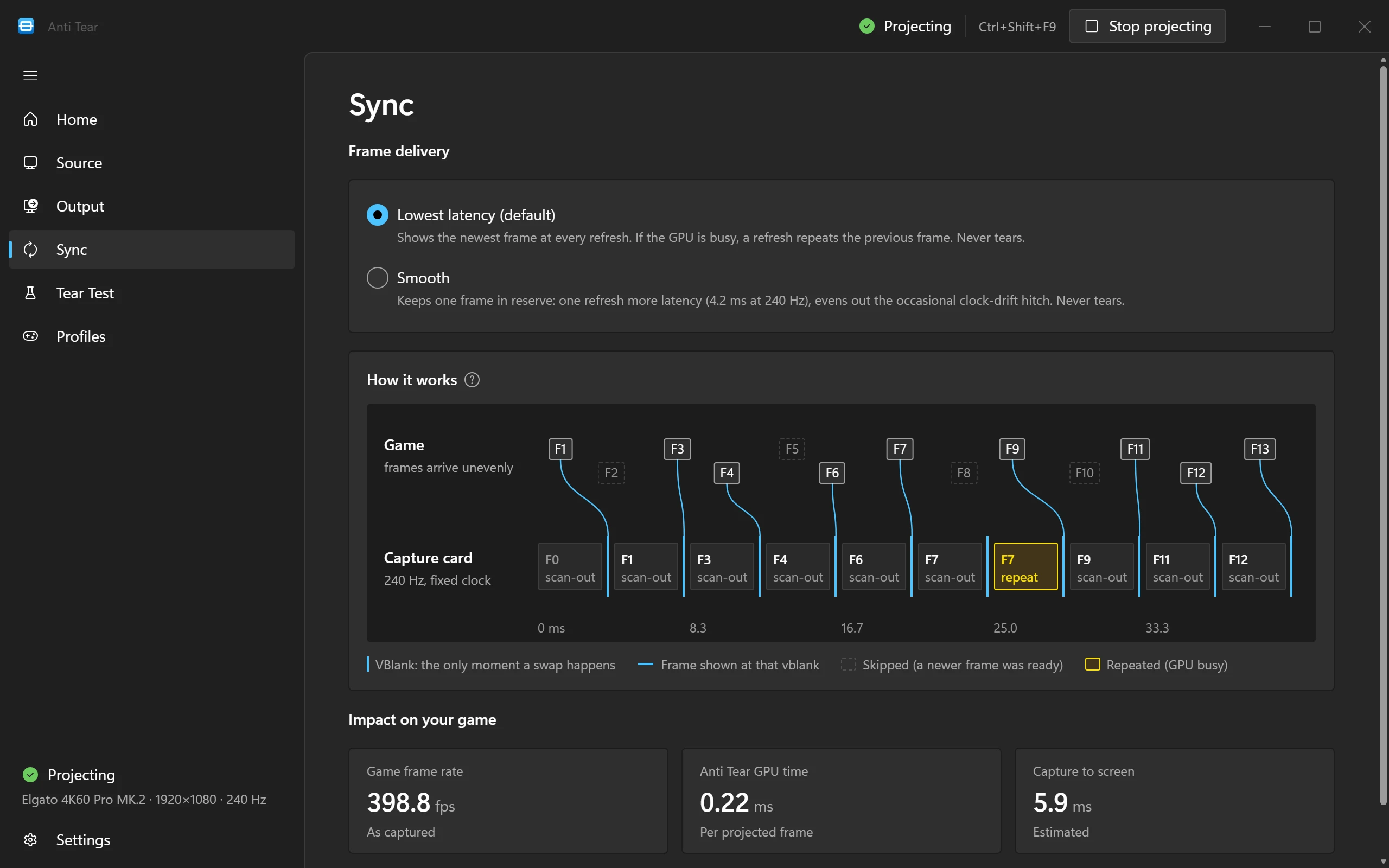
Two ways to deliver frames
Choose one on the Sync page, or give a game its own in a profile.
Lowest latency (default)
Shows the newest frame at every refresh. If the GPU is busy, a refresh repeats the previous frame. Never tears.
Smooth
Keeps one frame in reserve: one refresh more latency (4.2 ms at 240 Hz), evens out the occasional clock-drift hitch. Never tears.
The fastest refresh your card captures
Most capture cards accept faster signals than they can capture. Anti Tear runs yours at the fastest refresh it really captures that also divides evenly into your stream’s frame rate.
Captured, not just accepted
A card can accept modes it can’t capture: it shows them on its HDMI OUT, but OBS never sees them. Anti Tear knows which modes each card captures and uses only those.
A whole multiple of your stream
A 60 fps stream takes every 2nd refresh at 120 Hz and every 4th at 240 Hz, always evenly. 144 and 165 Hz don’t divide into 60, so frames land at uneven steps and motion judders: at 144 Hz, about 40 % of frames are uneven.
Smaller hitches, fresher frames
Two PCs’ clocks never tick at exactly the same speed, so now and then the stream hitches. At 240 Hz that hitch is 4.2 ms instead of a whole 16.7 ms frame at 60 Hz, 4× smaller, and each frame OBS takes is about 6 ms fresher. The stream itself stays at 60 fps.
Exactly 60, not 59.94
Anti Tear sets exact rates like 60, 120 and 240 Hz, never 59.94. Keep OBS’s canvas at a whole 60 fps too: against 59.94, the stream hitches every 16.7 seconds.
For a 60 fps stream
OBS takes one frame from the card for each frame of your stream. When the card’s refresh divides evenly into 60, every stream frame lasts the same number of refreshes. When it doesn’t, some last 2 refreshes and others 3, and motion judders.
| 60 Hz | 1 | Even |
| 120 Hz | 2 | Even |
| 144 Hz | 2 or 3 | Judders |
| 165 Hz | 2 or 3 | Judders |
| 240 Hz | 4 | Even |
Setting it up
Anti Tear’s setup walks you through it in about 30 seconds. It saves your display settings first, so you can restore them any time.
Connect the card as a display
Run an HDMI cable from a free output on your graphics card to the capture card’s HDMI IN. Use the same graphics card as your game display. Windows sees the card as another monitor.
Use Extend, not Duplicate
Duplicate mode mirrors your monitor onto the card, and mirrored outputs tear. Anti Tear won’t project while it’s on, and one click switches Windows to Extend.
Keep the card in a corner
In Windows’ display settings, place the card so it touches your game display only at a corner, where the mouse can’t wander onto it. Keep your game display as the main display, so games and notifications open there.
Set the best refresh rate
Anti Tear finds the card and its model and offers the fastest refresh it captures for your stream. The new mode is a 15-second trial: keep it if OBS shows a picture, or do nothing and it goes back on its own.
Check the colour
Capture cards expect RGB with 8 bits per colour. Anti Tear checks what your graphics card sends and tells you if the driver’s settings need changing. HDR on the card turns off in one click; your game display can stay in HDR.
Press Start
Pick your game display or a single window. Setup ends with a 15-second tear test and starts projecting; after that, press Start projecting, or Ctrl + Shift + F9 from your game.
On the streaming PC
Nothing to install. OBS captures the card as it does now, and a few of its settings decide whether it keeps every frame the card sends.
In OBS
- FPS: the card’s refresh rateVideo Capture Device › Properties. 240 for a card running at 240 Hz.
- Buffering: EnableVideo Capture Device › Properties. Above 60 fps it has to be Enable: “Auto” leaves it off for cards that send raw video.
- Canvas: a whole 60 fpsSettings › Video. 60, not 59.94, or the stream hitches every 16.7 s.
- Video format: NV12Video Capture Device › Properties. Avoid MJPEG modes.
- Color range: FullVideo Capture Device › Properties. Must match the GPU output.
- Audio: 48 kHzSettings › Audio. Matches the card.
Anti Tear’s Output page shows this list with the numbers for your card.
Check the feed
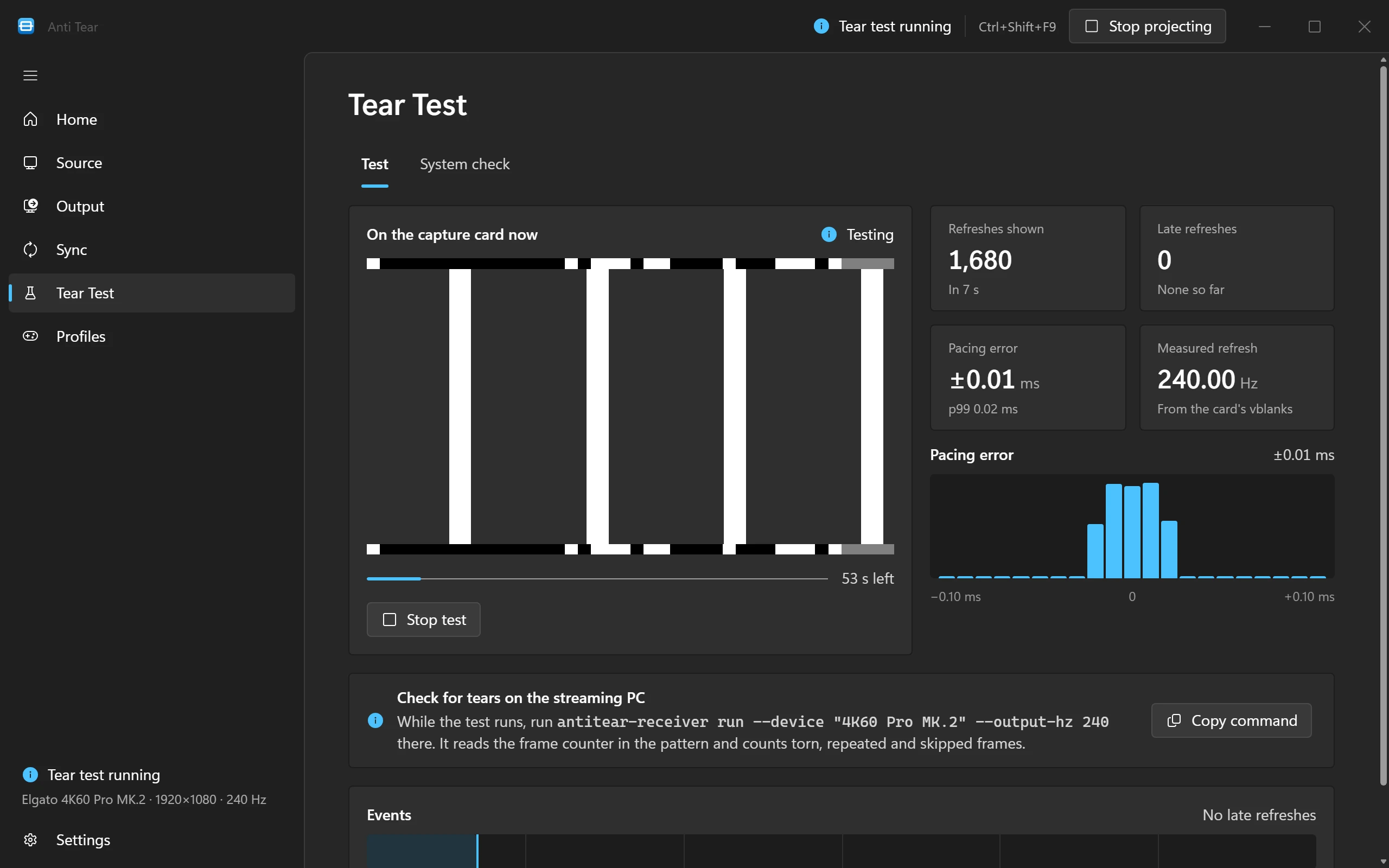
Anti Tear’s receiver can run on the streaming PC to check what really arrives. During a tear test it reads every frame from the card, decodes the frame counter in the test pattern and counts torn, repeated and skipped frames. The Tear Test page shows the command to run there, ready to copy.
PCIe cards such as the Elgato 4K60 Pro MK.2 can be read while OBS uses them. USB cards usually allow one app at a time, so turn off OBS’s Video Capture Device source while the receiver runs.
Try it on your next stream
Free for 3 days, no card needed. Then $5 a month.